
Use Product Categories to define and manage your products in HARMONiQ. You can set up product categories in either of the following ways:
- In the Configurator, select 'Stock | Product Categories'
- Press Ctrl + Shift + S and type 'product categories'
- Open the Product Categories list using one of the options above
- Select 'Add-F2' to add a new category, or 'Edit-F3' to edit an existing one
- HARMONiQ will then display the Product Category screen. Complete the fields below in the screen header:
Code
Enter a unique code for the product category
Description
Enter the product category description
Group
Select the product category group this category belongs to (these should be set up already)
Template Product
If you use templates, select the template for products in this category. Templates can speed up product setup by hiding properties that aren't relevant for that type of product.
Type
Select 'Standard' or 'Hidden.' If you select 'Hidden' products in this category won't appear on the Product List unless the user is allowed to view hidden categories. Whether users can see hidden categories is controlled by 'Allowed to See Products in Hidden Categories' property on the user.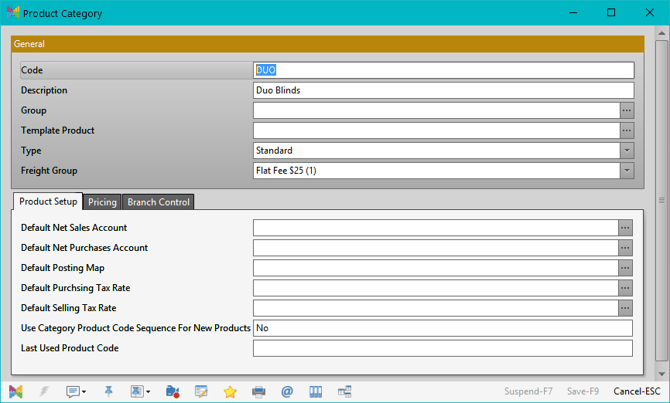
- Complete the fields on the tabs at the bottom of the screen as required, then select 'Save-F9'