
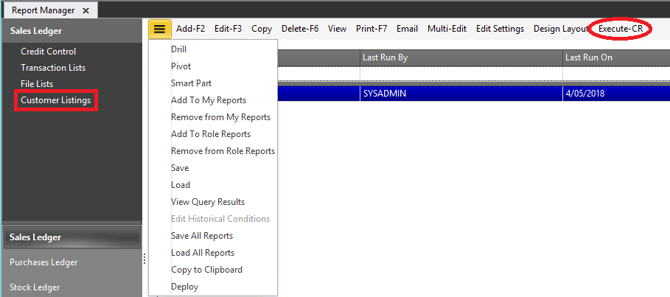
- Open Report Manager (Ctrl + Shift + S and start typing 'report manager')
- Highlight the report you want to run
- Select Execute-CR (not Print-F7)
- HARMONiQ will then display the run criteria screen
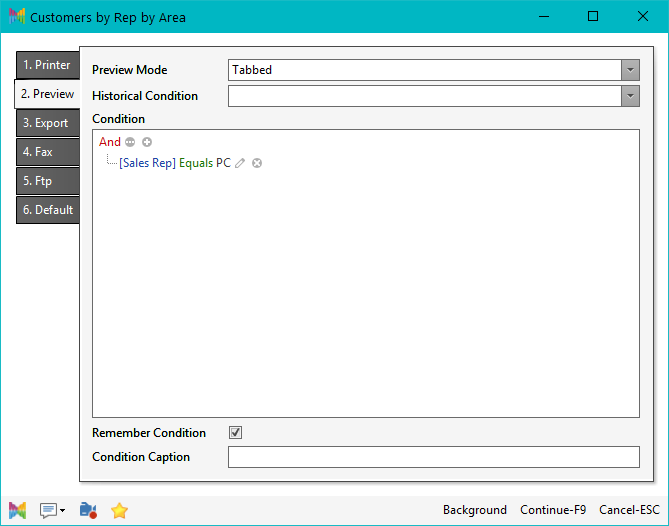
- If needed, enter a Condition to restrict the data shown in the report (for example, to only include customers for a specific sales rep)
- Choose how you want to the report output. If you want the report to remain open under its own tab, select Tabbed.
- If you tick Remember Condition, HARMONiQ will keep the condition for the next time you run the report.
- Select Continue-F9 to run the report.
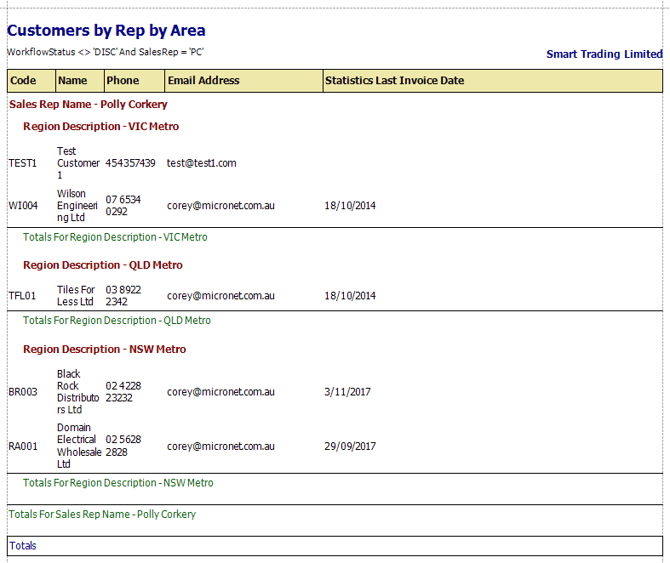
If you want to keep working while the report generates, select Background on the execution screen. This works for previewing reports as well as other output options, but it may not work for reports that use a custom data provider.