You can use Save Layout to save changes you've made to an object list or screen in HARMONiQ. Layouts can be saved for the whole company, a specific role, or a specific user.
To save screen layouts, the Save Layout Command Access Control property on your role must be set to Allow.
Once you've made changes to a screen's layout that you want to save:
-
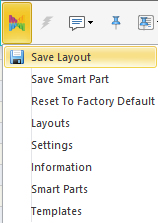
Click the HARMONiQ icon and select Save Layout from the menu
-
HARMONiQ will display the Save Layout Options screen
- Complete the fields below
- Name
You can enter a name for the layout if required.
If you don't enter a layout name, the screen will always open with this layout.
If you do enter a layout name, you'll need to load it using the 'Layouts' option on the HARMONiQ icon menu when you open the screen.
If you load a named layout and then save it again, the layout name will default. - Default
Tick this box if you want to save this layout as the default layout for the company, role, or user you select in the next fields. - Layout Context
Select whether this layout is for Company, Role or User. - Roles
If you selected 'Role' in Layout Context, select the role(s) you want to save this layout for. - Users
If you selected 'User' in Layout Context, select the user(s) you want to save this layout for.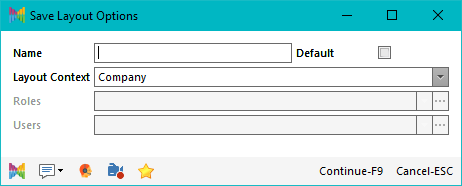
- Name
- Select Continue-F9 to save the layout.
If you save a layout by mistake, you can select the Reset to Factory Default option on the menu to reset the layout to the factory default view.
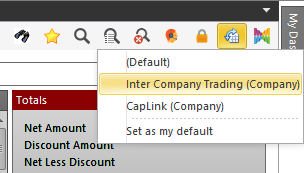
On object lists, you can save different layouts and switch between them depending on what you need to see, rather than trying to fit everything into one view.
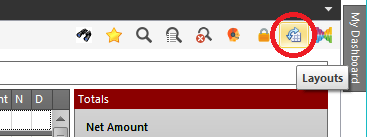
To switch between layouts for an object list, use the Layouts icon on the command menu bar at the top of the list. When you click this icon, HARMONiQ displays a list of the layouts available and you can select the layout you want.